
Employee availability and colour
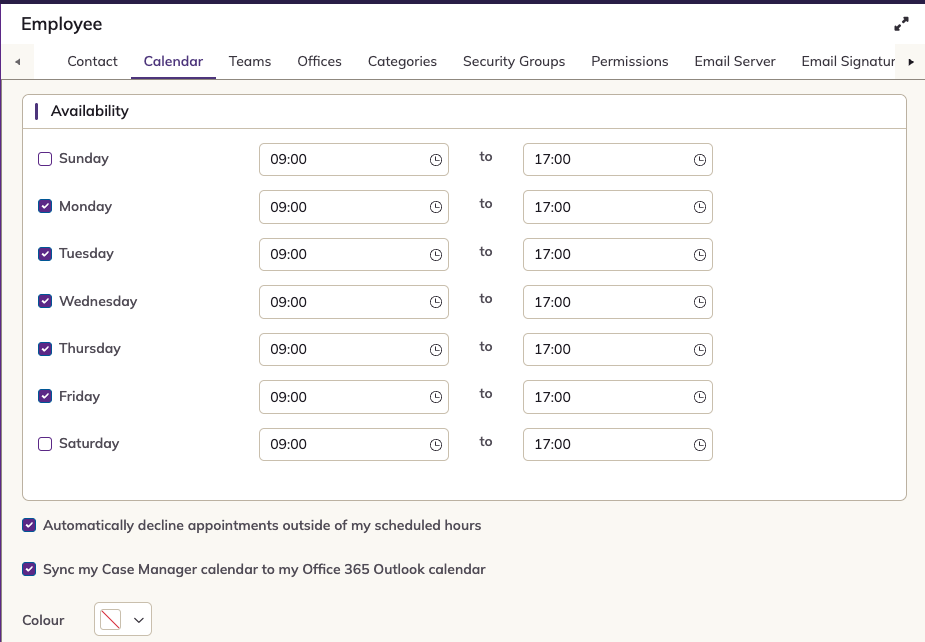
Each employee's working hours, appointment colour and Outlook sync setting are on the Calendar tab of their employee record.
Availability
For each day the employee works, tick the day and set the start and end times. A day that isn't ticked counts as unavailable for the whole day.
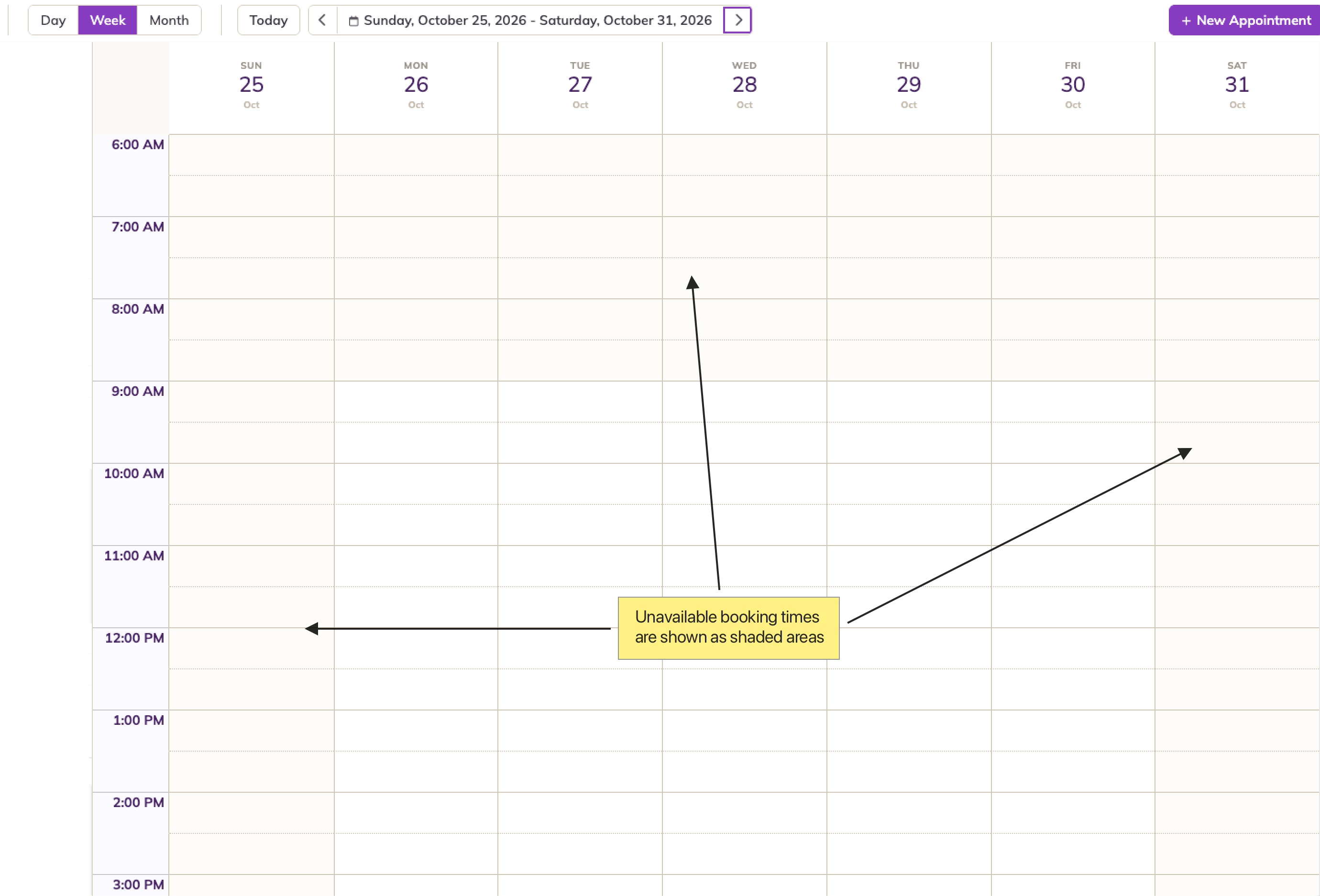
Unavailable time is always shown in a darker shade in My Calendar and the Scheduler. The shading is based on these hours, whether or not auto-decline (below) is turned on.
Automatically decline appointments outside of my scheduled hours
When this is ticked, nobody can book the employee outside their available hours. This includes the employee themselves, and there's no override. It also stops anyone dragging an existing appointment into unavailable time in the Scheduler.
If someone tries, Case Manager shows the message "[Employee name] is unable to attend this appointment as is out of the office". Click OK, then choose another time or another employee.
When auto-decline is unticked, the shading is only a guide and appointments can be booked at any time.
Colour
Choose a colour from the palette. It's used as the background of the employee's appointments, so staff can tell at a glance whose appointment is whose.
Outlook calendar sync
Tick Sync my Case Manager calendar to my Office 365 Outlook calendar to copy the employee's appointments to their Outlook calendar. This setting is greyed out until calendar sync is turned on for your organisation, see Microsoft 365 calendar sync.