
Rooms
Rooms are the bookable rooms at your offices, such as Meeting Room 3. When staff book an appointment at one of your offices, they choose a room for it, and the Scheduler can show each room's bookings.
Rooms are set up as a Case Manager list. In the list they're called Calendar Resource; in the booking wizard and the Scheduler they're called Room. Both names refer to the same thing.
To add, edit or delete rooms you need the Manage Rooms and View Other Lists permissions, see Calendar and Scheduler permissions.
Setting up a room
- Go to Lists → Other Lists.
- In the List Type drop-down, choose Calendar Resource.
- Select a room to edit it, or click the new-item icon to add one.
- Enter the room's Description. This is the name shown in the wizard and the Scheduler.
- Make sure Active is ticked. Untick it to stop the room being offered for new bookings.
- In Location, choose the office the room belongs to.
- Click Save.
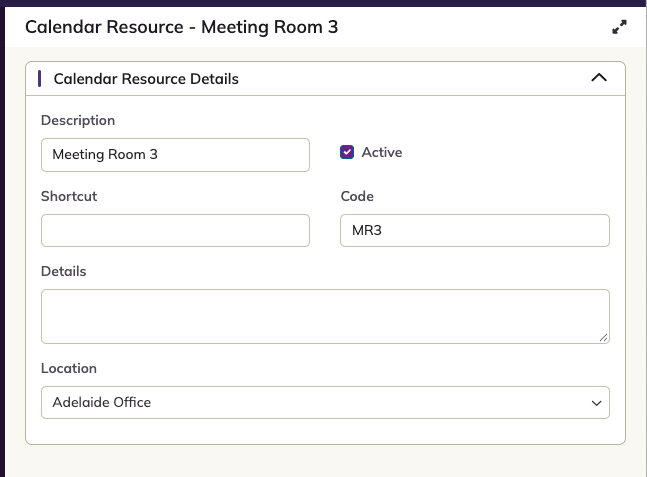
How a room's Location is used
The room's Location decides which rooms are offered when someone books an appointment at that office. If the wrong rooms appear when booking, check the Location on each room.
A room with no Location is shared by all offices. In the Scheduler, shared rooms are listed after your offices, alongside employees from every office.
If no rooms are set up at all, the Scheduler doesn't show the Rooms list.