
Documents FAQ
For document locking problems see Locked Documents FAQ.
 I'm using the Web version of Case Manager. I created a document from a formatted text template but I can't edit it.
Formatted text documents can be saved in the Windows version as .rtf files or .html files. However, the Web version can only save .html files. The format that your Windows version uses is specified at the
Your template is probably an .rtf file that was created when this setting was not set to .html files. It creates .rtf documents that cannot be edited in the Web version.
It's not possible to convert the template's format from .rtf to .html. The solution is to copy its content, delete the .rtf template, check the setting is for .html files and paste the content into a new formatted text template.
Using the 'Track Changes' feature in Word with different versions of Case Manager.
Case Manager Version 6.1
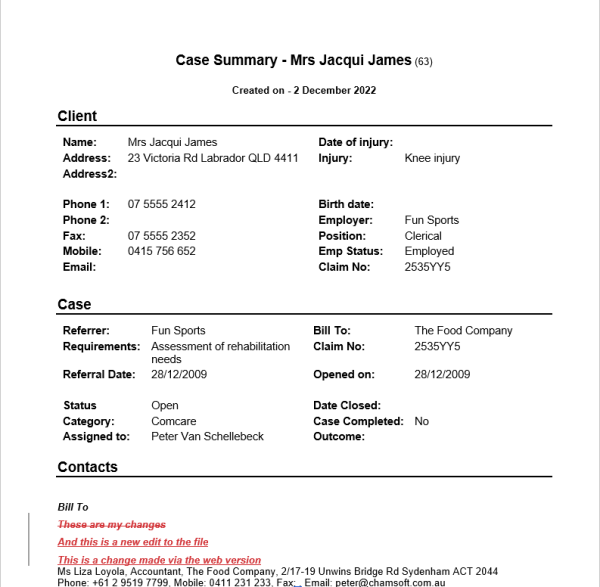
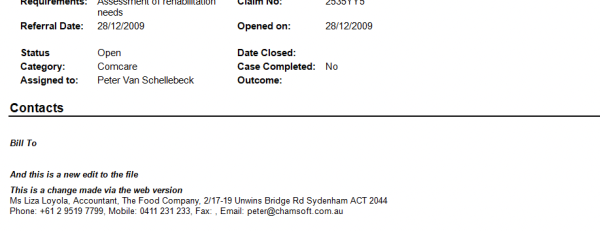
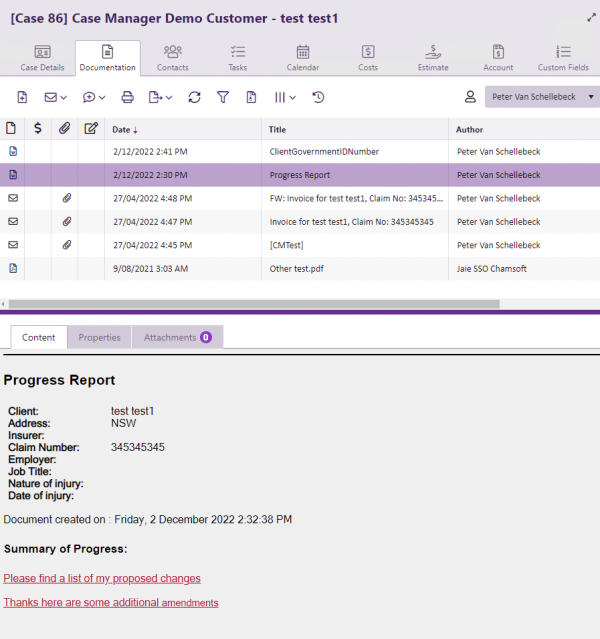
When editing a Word document with Tracks Changes enabled, the document preview pane in Case Manager will display the proposed changes.
-
These are the changes in Word:
-
These are the changes in the Desktop Version of Case Manager:
-
These are the changes in the Web Version of Case Manager:
Case Manager Version 6.2
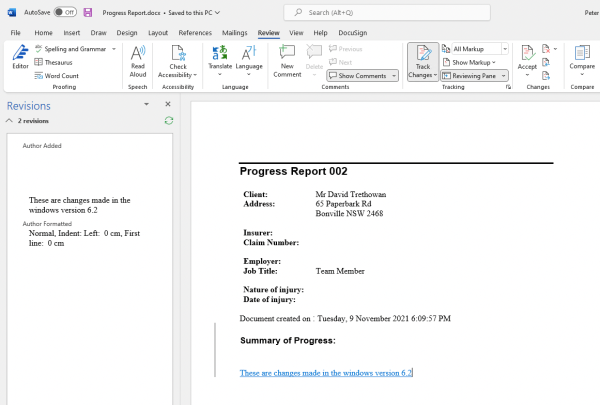
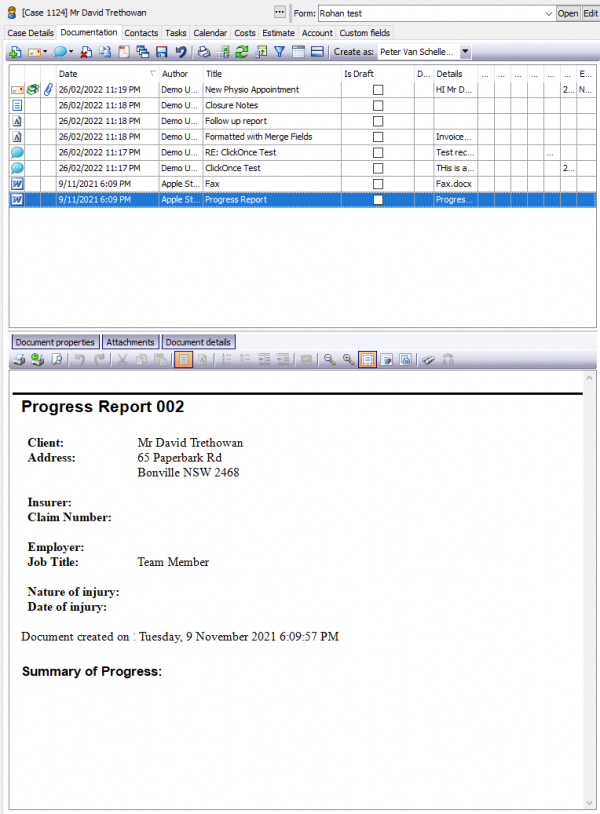
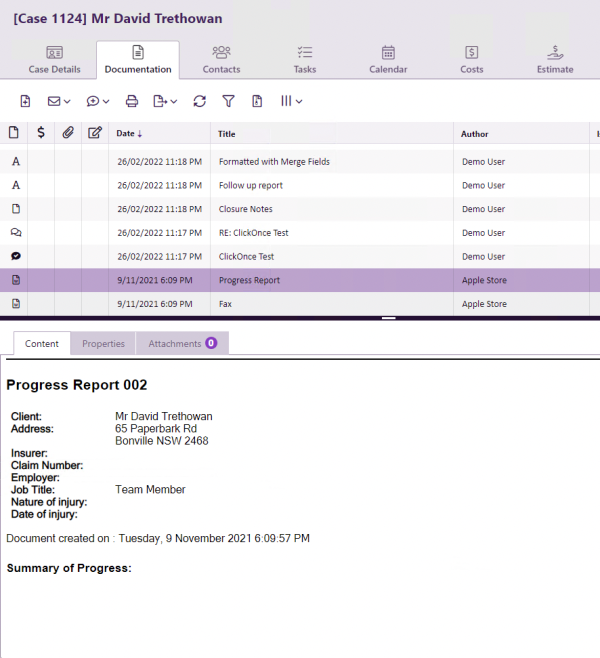
When editing a Word document with Tracks Changes enabled, the document preview pane does not show the Track Changes in Case Manager after the document is saved and the lock released. If another user opens the document the Track Changes are still within the Word file. If a user chooses the Accept Changes option in the Word toolbar, the new changes will then be visible in the preview pane.
-
These are the changes in Word:
-
These are the changes in the Desktop Version of Case Manager:
-
These are the changes in the Web Version of Case Manager:
Case Manager Version 6.3
As seen with Version 6.1, when editing a Word document with Tracks Changes enabled, the document preview pane in Case Manager will display the proposed changes.