
System and network FAQ

 Can I send SMS text messages?
You can send SMS messages from Case Manager. Start at SMS overview for details.
For the app's details see the SMS overview in the learning site for the mobile app.
Can I run Case Manager on an Apple iPad?
The new web version of Case Manager runs brilliantly on iPads.
There are several things to keep in mind:
- iPads cannot create new Word or PDF files. You can preview any existing Word/PDF documents in Case Manager, although you cannot modify them.
- The iPad operating system does not allow the browser version of Case Manager to access its file system. This restriction prevents you simply uploading documents from your iPads into a Case Manager system on the iPad.
- Step 1 use the Files app: https://support.apple.com/en-au/ht206481
- Step 2 using two apps at the same time: https://support.apple.com/en-au/ht207582
Naturally you can create plain text or formatted text documents within Case Manager.
There is one workaround if the iPad OS is IOS11 or later:
System issues
How do I install the Word add-in?
The Word add-in enables you to insert merge fields into Word document templates via a Merge Fields window. See Installing the Word add-in for all details.
How do I install the special Word add-in for Citrix and Terminal Servers?
There is a special Word add-in for Citrix and Terminal Servers, see installing Word add-in for Citrix and Terminal Servers and follow the instructions.
Network issues
I'm a hosted customer and I can't log in. I think it's my VPN.
All our hosted customers connect to their Case Manager data through a VPN or virtual private network. You can think of it as a private ‘tunnel’ through the internet that connects your computer and your Case Manager system. This enables information to travel securely in both directions.
This VPN is integrated with Case Manager automatically and usually you are barely aware that it exists. However, you may sometimes see error messages when your internet service drops out or after Windows updates your computer. You can access the Case Manager login screen but login will be prevented because of a SQL error. The error messages differ. They could refer to:
- ... unable to locate
- ... timed out
- ... unable to access the SQL server
The problem is that you cannot connect to your data via a VPN. The solution is the same regardless of the error message:
- Close the Case Manager error and login screens.
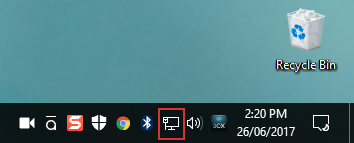
- Locate the network adaptor icon in the system tray at the bottom right hand side of your screen.
- Right-click the icon and select Open Network and Sharing center.
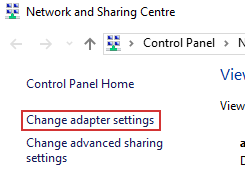
- Click Change adapter settings at the top left hand side of the next window.
- Locate the Case Manager VPN icon in the network connections displayed.
- Click this icon to select it and press the delete key on your keyboard.
- Click Yes to confirm that you want to delete it.
- Relaunch Case Manager and attempt the login again.
This should fix the problem. If it doesn’t, please contact Case Manager Support.
[more FAQ to come]